

Your sales team is drowning. Marketing sends over 500 leads a month, but maybe 50 of them are actually worth calling. The rest? Students downloading whitepapers, competitors doing research, and tire-kickers who'll never buy.
Without lead scoring in HubSpot, every lead looks the same. Your reps waste hours chasing contacts who were never going to convert while actual buyers sit in the queue, getting cold.
Here's what proper HubSpot lead scoring does: it automatically ranks every contact based on how well they match your ideal customer (fit) and how engaged they are with your brand (interest). High scores get prioritized. Low scores get nurtured or ignored. Your reps focus on the leads most likely to close.
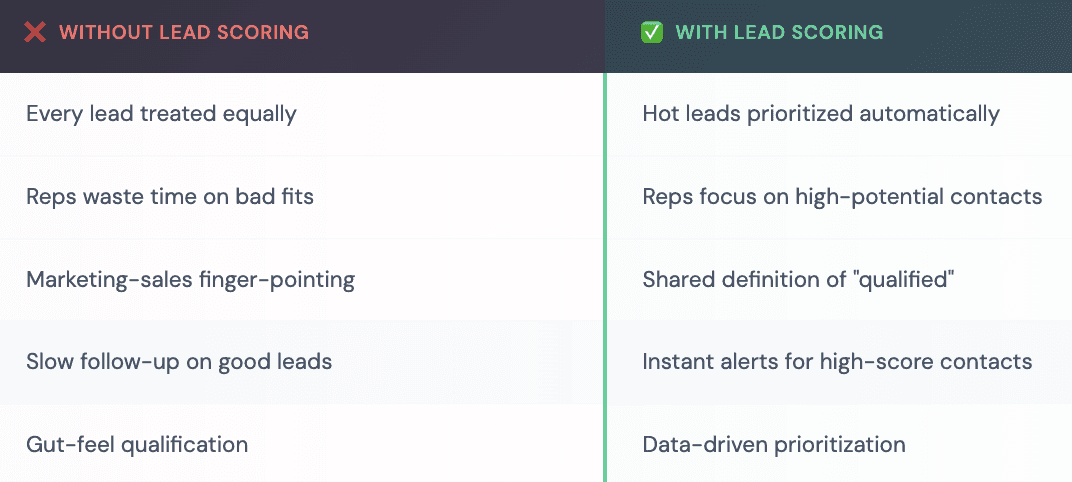
The impact is real: organizations implementing lead scoring see 20% increases in sales productivity and 25% improvements in conversion rates. Companies that respond to leads within the first hour are 7x more likely to qualify them - but that only works if you know which leads deserve that fast response.
Let's set up your first lead scoring model. It'll take about 30 minutes.
What Is Lead Scoring in HubSpot?
Lead scoring HubSpot is a system that assigns points to contacts based on attributes and behaviors, then uses those points to prioritize who gets attention first.
HubSpot offers two approaches:
Manual Lead Scoring (Professional + Enterprise)
You define the rules. You decide that a VP title is worth 20 points, a website visit is worth 5 points, and unsubscribing from emails deducts 15 points. HubSpot calculates the score automatically based on your criteria.
This is what most teams start with, and it's what we'll focus on here.
Predictive Lead Scoring (Enterprise Only)
HubSpot's AI analyzes your historical data, which contacts became customers, which didn't, and automatically identifies patterns that predict conversion. The system generates a "Likelihood to Close" percentage for each contact.
Predictive scoring is powerful, but it requires enough historical data to work (at least 100 customers and 1,000 non-customers). If you're newer to HubSpot, start with manual scoring and graduate to predictive once you have the data.
How to Set Up Lead Scoring in HubSpot: The 30-Minute Setup
Here's how to do lead scoring in HubSpot from scratch. We'll build a working model you can refine over time.
Step 1: Define What "Good" Looks Like (5 minutes)
Before touching HubSpot, answer two questions:
What makes someone a good fit? Think about job title and seniority, decision-maker vs. researcher. Company size matters too - too small and they can't afford you, too big and they need a different solution. Industry and location can also be factors depending on your business.
What behaviors signal buying intent? Pricing page visits are gold. Demo requests are even better. Bottom-funnel content downloads, multiple email opens, returning to your site repeatedly - these all indicate someone moving toward a decision.
Write down 3-5 fit criteria and 3-5 behavioral signals. These become your scoring rules.
Step 2: Access the Lead Scoring Tool (2 minutes)
Click the Settings gear in HubSpot's main navigation
In the left sidebar, select Properties
Search for "HubSpot Score" in the contact properties
Click into the property to edit scoring criteria
You can also create custom score properties if you want separate scores for different purposes (engagement score vs. fit score, for example). HubSpot allows up to 25 different scoring models.
Step 3: Set Up Positive Scoring Criteria (10 minutes)
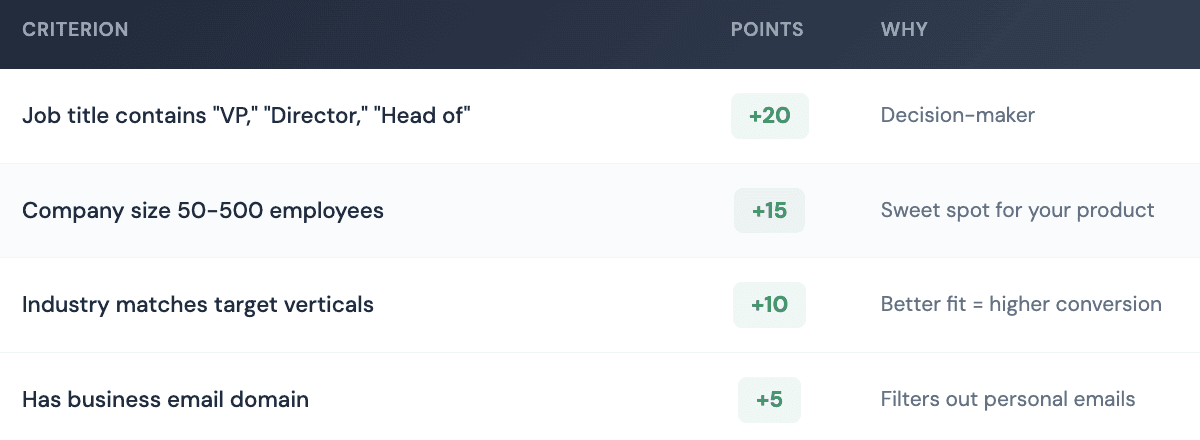
Click "Add criteria" in the Positive section. Here's a starter model:
Fit Criteria (who they are):
Behavioral Criteria (what they do):
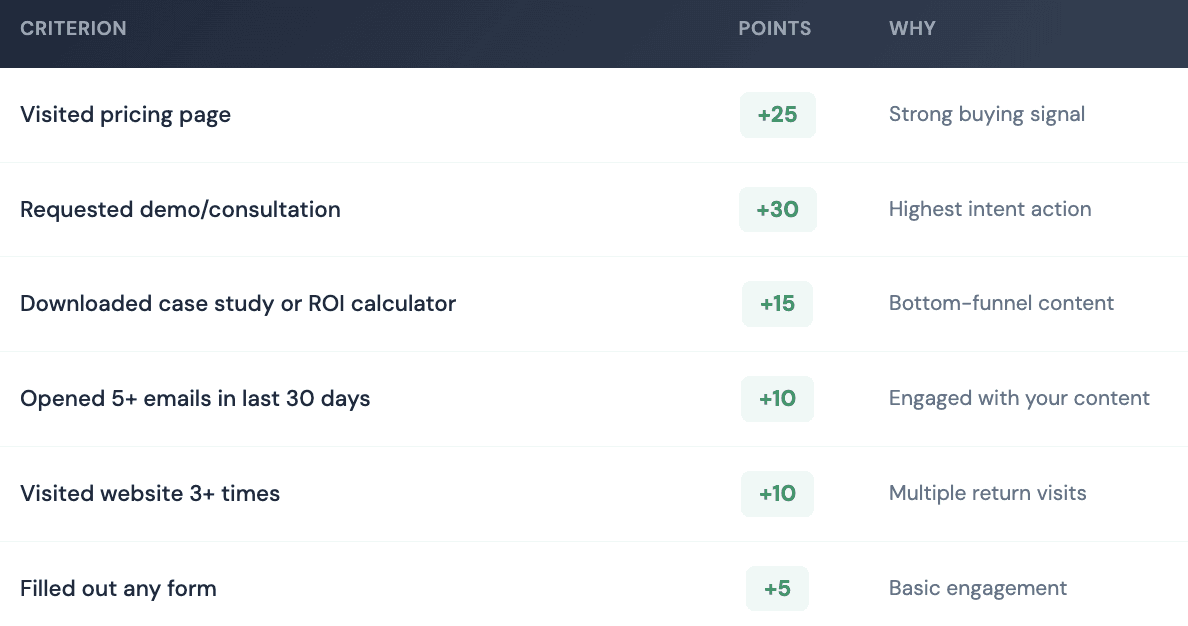
Pro tip: Weight behavioral signals higher than fit criteria. Someone with perfect demographics who never engages is less valuable than a slightly-off-ICP contact who's actively researching solutions.
Step 4: Set Up Negative Scoring Criteria (5 minutes)
Equally important - what should lower a score?
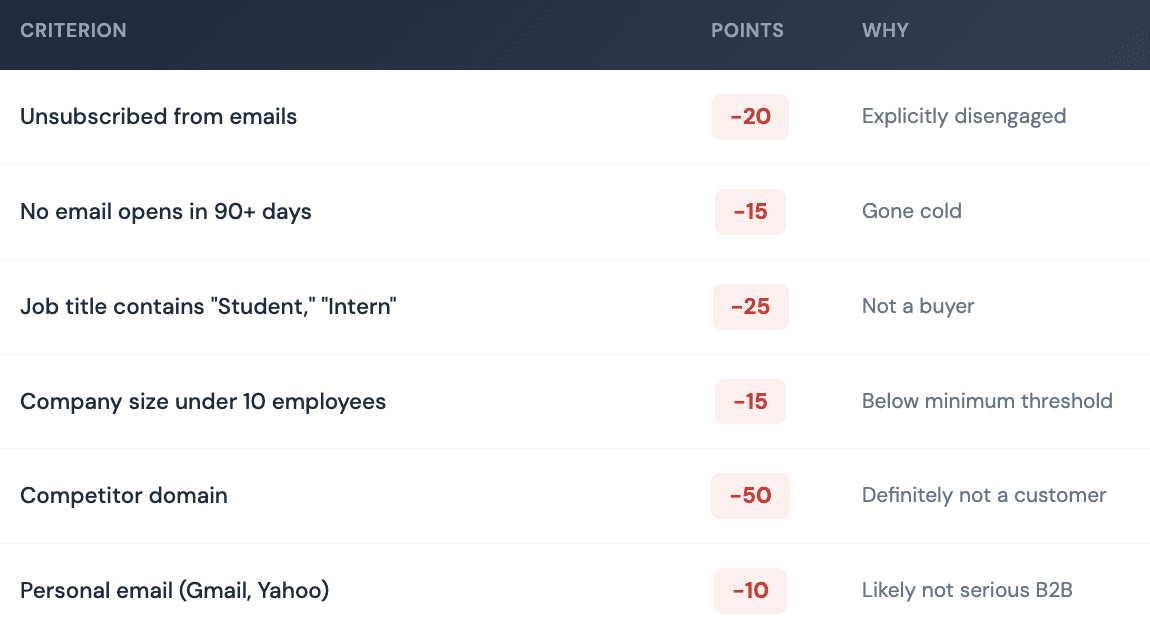
Negative criteria prevent inflated scores. Without them, a student who downloads everything scores the same as an engaged VP. That's not useful.
Step 5: Test Your Model (5 minutes)
HubSpot lets you test scoring criteria before going live:
Click "Test score criteria" in the scoring setup
Search for a contact you know is a good customer
See what score they would receive
Do the same for a known bad-fit contact
If your best customers aren't scoring highly, adjust the weights. If obvious junk leads score well, add negative criteria. Keep testing until the model reflects reality.
Step 6: Set Score Thresholds (3 minutes)
Decide what scores mean:
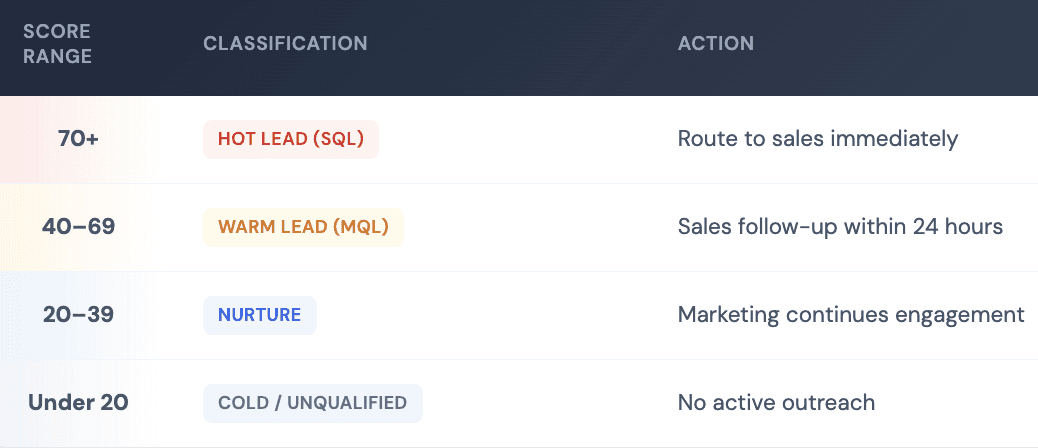
These thresholds vary by business. The goal is getting sales and marketing aligned on what each tier means.
What Is Combined Lead Scoring in HubSpot?
Combined lead scoring HubSpot refers to using multiple scores together, typically separating "fit" from "engagement."
Instead of one HubSpot Score, you create two:
Fit Score: Based purely on demographics and firmographics (who they are)
Engagement Score: Based purely on behaviors (what they do)
This gives you a matrix:

A contact with high fit but low engagement needs nurturing content to activate them. A contact with high engagement but low fit might be worth a conversation to see if there's an edge case worth pursuing.
Combined scoring is more nuanced than a single score and helps you tailor follow-up more precisely.
HubSpot Predictive Lead Scoring: When AI Takes Over
Once you have enough historical data, HubSpot predictive lead scoring can supplement or replace your manual model.
Here's how it works: HubSpot's AI analyzes contacts who became customers versus those who didn't. It identifies patterns in demographics, behaviors, and engagement you might never notice. It generates two properties - "Likelihood to Close" (percentage chance of conversion in next 90 days) and "Contact Priority" (Very High, High, Medium, or Low).
The AI considers hundreds of data points - far more than any manual model could track. It updates scores in real-time as contacts take new actions.
To enable predictive scoring:
Go to Settings → Properties
Search for "Likelihood to close" and "Contact priority"
Add these properties to your contact views
The model trains itself based on your data. No configuration required, but also less control over what it weights.
When to use which:
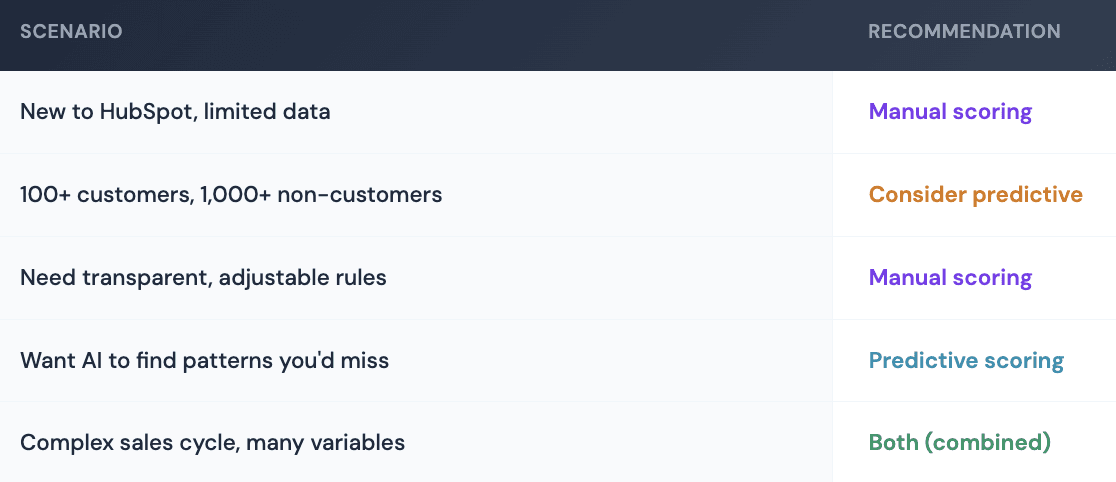
Many teams run both - using manual scoring for transparency and control while letting predictive surface patterns they might miss.
How to Use HubSpot's Lead Scoring System: Automation
Scoring is only useful if it triggers action. Here's how to use HubSpot's lead scoring system to automate your sales process:
Workflow 1: Alert Sales on Hot Leads
Trigger: HubSpot Score becomes 70 or higher
Actions:
Send Slack/email notification to assigned sales rep
Create task: "Follow up with high-score lead"
Update lifecycle stage to SQL
This ensures hot leads never sit unnoticed in the CRM.
Workflow 2: Route by Score Tier
Trigger: Form submission (any form)
Actions (branched by score):
Score 70+: Assign to AE, send high-priority notification
Score 40-69: Assign to SDR for qualification
Score under 40: Enroll in nurture sequence
Different score tiers get different treatment automatically.
Workflow 3: Re-engage When Scores Drop
Trigger: HubSpot Score decreases by 20+ points
Actions:
Enroll in re-engagement email sequence
Update contact status to "At risk of disengaging"
Score decay is a signal. When engaged contacts go cold, catch them before they're gone entirely.
Improving HubSpot Scoring with Enrichment
Here's where most HubSpot scoring setups fall short: they only score on data already in HubSpot.
If a contact fills out a form with just name and email, you have almost nothing to score on. No company size. No industry. No title beyond what they self-reported (which is often wrong or missing entirely).
This is why enrichment matters.
With an external enrichment layer like Databar.ai, before or immediately after contacts enter HubSpot, you can add company size, industry, and revenue data automatically. Append job titles and seniority levels. Layer in technographic data about what tools they use. Include intent signals from third-party sources.
That enriched data then feeds your scoring model, making it dramatically more accurate.
Example workflow:
Contact fills out demo request form (email + name only)
Enrichment runs instantly: appends company size (150 employees), industry (SaaS), title (VP Marketing), tech stack (uses competitor tool)
HubSpot scoring runs on enriched data: +20 (title) +15 (company size) +10 (industry) +25 (pricing page visit) +30 (demo request) = 100 points
Sales gets instant notification with full context
Without enrichment, that same contact might score 35 points (just the behavioral signals) and not trigger the hot-lead workflow. The fit signals were there - you just didn't have access to them.
Common Mistakes
Over-weighting demographics, under-weighting behavior. A perfect-fit contact who never engages is less valuable than a slightly off-ICP contact actively researching solutions. Behavioral signals should generally carry more weight.
Not using negative scoring. Without negative criteria, scores only go up. That student downloading everything will eventually score like a hot prospect. Penalize the fit mismatches.
Setting and forgetting. Your scoring model should evolve. Review quarterly: Are high-scoring leads actually converting? Are good customers scoring appropriately? Adjust based on what you learn.
Not connecting scores to actions. A score sitting in a field does nothing. Build workflows that route leads, notify reps, and trigger follow-up when scores cross thresholds. The score needs to change behavior to be useful.
FAQ
What is lead scoring in HubSpot?
Lead scoring in HubSpot assigns numerical values to contacts based on their attributes (job title, company size, industry) and behaviors (page visits, email opens, form submissions). These scores help sales and marketing prioritize which leads to pursue first.
How do I set up lead scoring in HubSpot?
Go to Settings → Properties → search "HubSpot Score" → click to edit. Add positive criteria (attributes and behaviors indicating a good lead) and negative criteria (factors indicating poor fit). Assign point values to each, then test on known contacts before going live.
What's the difference between manual and predictive lead scoring?
Manual scoring uses rules you define - you decide which criteria matter and assign points. Predictive scoring uses HubSpot's AI to analyze historical data and identify conversion patterns automatically. Manual offers control, predictive can find patterns humans miss.
What score threshold should trigger sales follow-up?
Common starting point: 70+ for immediate sales follow-up (SQL), 40-69 for SDR qualification (MQL), under 40 for marketing nurture only. Adjust based on your conversion data.
How often should I update my lead scoring model?
Review quarterly at minimum. Check whether high-scoring leads convert and whether good customers would
Related articles
See all